
Members & Invites
Inviting people into an organization, managing them once they are in, and handing the whole thing to a new owner.
An organization grows in exactly one way: someone with the right role sends an email invitation, and the invitee accepts it. There is no join-by-link, no self-service signup into someone else's organization, and no way to add a member directly; the invitation is the only door, which is what makes the guarantees on this page possible.
This page covers that door end to end: who can open it, what the invitee experiences, how members are managed afterwards, and the one change member management refuses to make, moving ownership, which has its own handshake.
Multi-tenancy only
This section applies only to projects generated with `--multi-tenancy`.
Requires ENABLE_MULTI_TENANCY
Multi-tenancy is off in a new project. Set `ENABLE_MULTI_TENANCY=true` in both `.env.local` and `supabase/.env.local` to use this section.
Multi-tenancy only
Everything on this page exists only in projects generated with multi-tenancy, and none of it runs until the flag is on in both env files. See Turning it on on the Organizations overview.
Who can invite, and to what
Owners and administrators can invite; members cannot. The gate is an invite permission checked in the database, and the app mirrors it, so a member never sees the Invite member button it would be refused for; how that pairing works is on Authorization.
The invite form collects three things: the invitee's full name, their email address, and a role. The role dropdown offers member and administrator only. Inviting someone as owner is not possible; the database rejects it outright, because an organization has exactly one owner and that seat only moves through the ownership transfer handshake.
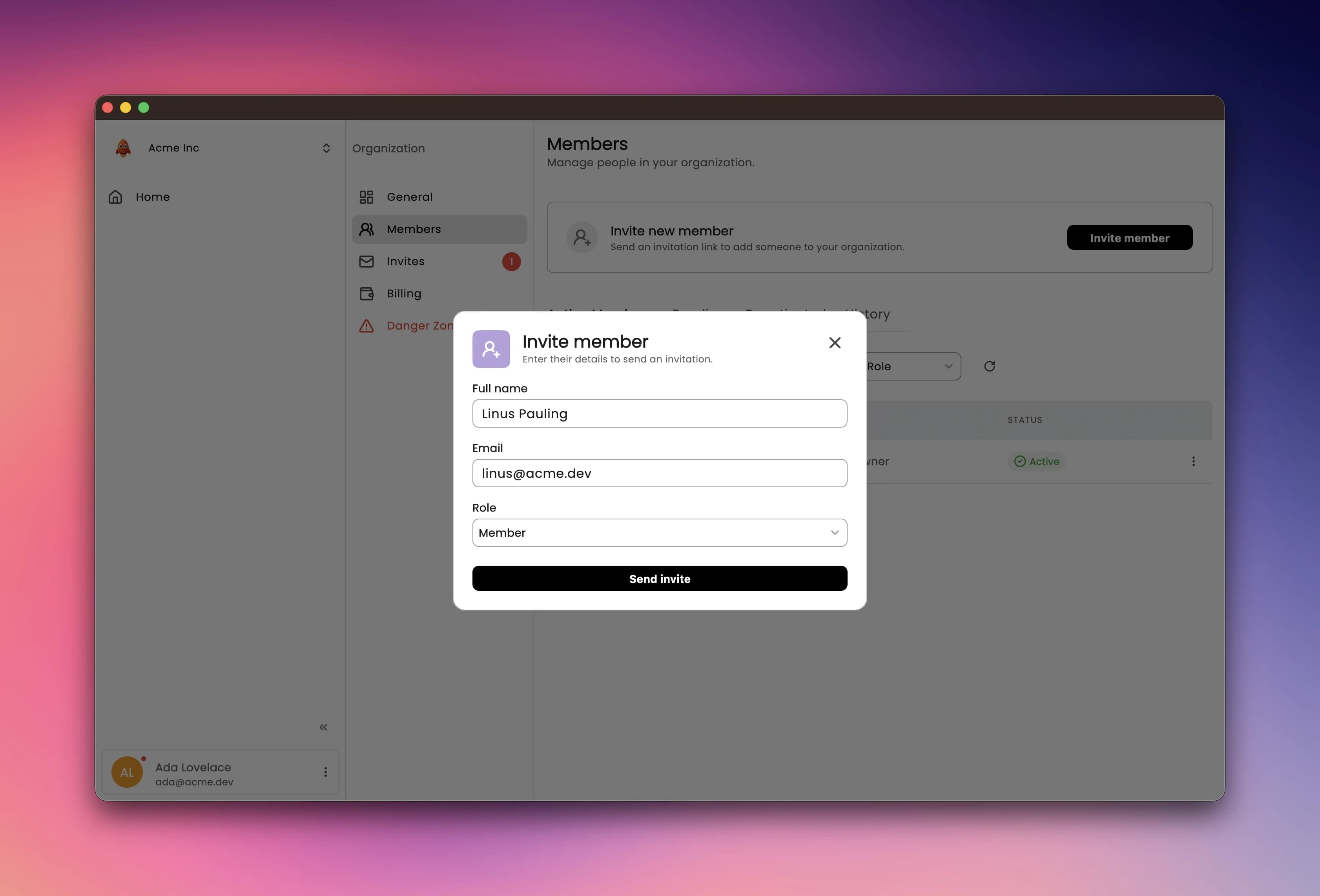
The name is not cosmetic: it becomes the invitee's display name inside the organization the moment they accept, so type the name you want on the members list, not a note to yourself.
Two guards run before anything is sent, and both surface as friendly errors in the dialog rather than a delivered-then-rejected invitation:
| Guard | What it means |
|---|---|
| Already a member | This email belongs to someone who is in the organization already |
| Already invited | A pending invitation for this email exists; resend that one instead |
Seat-based billing only
This section applies only to projects generated with `--seat-based-billing`.
Requires ENABLE_SEAT_BASED_BILLING
Seat-based billing is off in a new project. Set `ENABLE_SEAT_BASED_BILLING=true` in both `.env.local` and `supabase/.env.local` to use this section.
With seat-based billing on, two more guards join them: an organization with no active subscription cannot invite at all, and a full one is refused with a seat-capacity error. What counts as a seat, and why a pending invitation does not, is covered on Seat-Based Billing.
Letting another role invite
Both layers name the same gate. In the database it is the invites.create
permission, granted to owner and admin by the seed; in the app it is
OrgAction.invite, answered by OrganizationPolicy.forRole. To let members
invite, widen both:
Multi-tenancy only
This section applies only to projects generated with `--multi-tenancy`.
WHERE r.slug = 'member'
AND p.slug IN (
    'billing.read',
    'invites.create',  -- new: members may invite
    'memberships.read',
    'users.read',
    'usersroles.read'
);case Role.member:
switch (action) {
case OrgAction.read:
case OrgAction.invite: // new: mirror the grant
return const Allow();
case OrgAction.edit:
case OrgAction.viewDangerZone:
case OrgAction.manageDangerZone:
case OrgAction.transferOwnership:
case OrgAction.respondToOwnershipTransfer:
return const Deny();
}Move both layers, or one of them lies
Grant only the SQL and the button stays hidden even though the write would succeed; allow only the Dart action and the UI offers what row-level security refuses. Hiding a button is a courtesy; row-level security is the law.
If the right shape is not a wider grant but a whole new role, an inviter, a recruiter, that is Adding a role.
What the invitee sees
The invitation is one email, and the flow adapts to whether the invitee
already has an account. It ships in English and French, follows the invitee's
saved language if they have an account and the inviter's otherwise, and is
yours to restyle: the template is
supabase/functions/send-email/_templates/invites/join-org-email.tsx, beside
the other email templates. One thing the copy never states is the expiry
window; if you change the seven-day default in
Changing the seven days, consider adding the
deadline to the template, since today the email gives the invitee no hint.
The email arrives, with the subject "You're invited to join {org}!". It shows the organization's logo, who invited them, name and email both, and a single Join button.
The button signs them in. An invitee with a verified account gets a magic link: one click and they are signed in, no password typed. An invitee with no account is asked to set a password first, on a screen where the invited email is shown read-only; the account they create is for that email, not one of their choosing.
They land on the invitation page, which shows the organization, who sent the invite and when it expires, with two buttons: Accept and Refuse. Refusing asks for confirmation. Accepting creates the membership and offers to switch into the new organization right away.
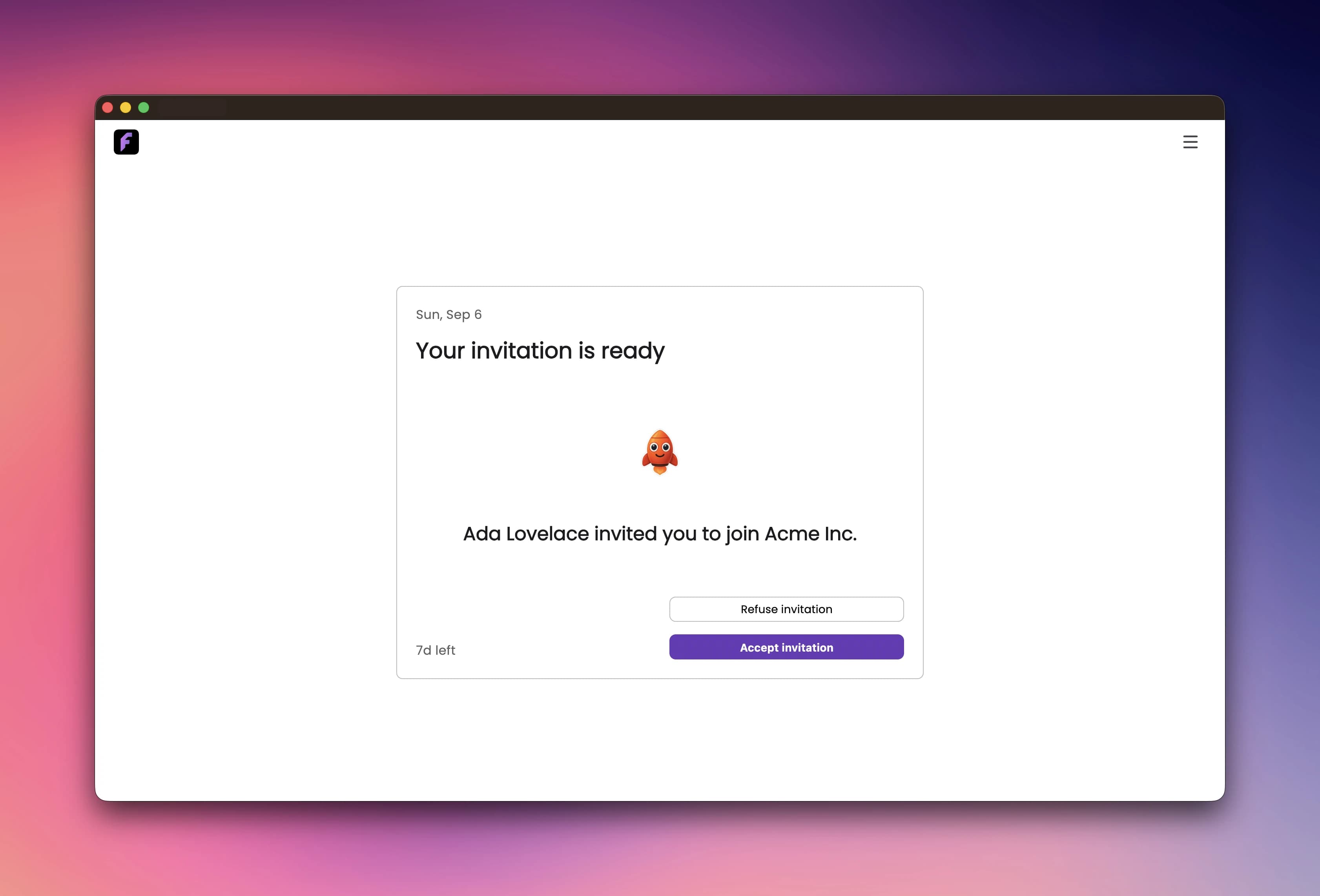
The email link is the fastest path, but not the only one. A signed-in user also finds their pending invitations in the access hub and on the Invites tab of the organization screen, with the same Accept and Refuse choices in both places.
The invitation is bound to the email
Acceptance requires that the signed-in account's email match the invitation email. A forwarded invite is a dead end for whoever receives it, which is the point: the inviter chose a person, not whoever holds the link.
Invitations expire, and you can take them back
An invitation is live for seven days. After that it still appears in the list, marked expired, and accepting it is refused; the invitee sees the expired state rather than an error out of nowhere.
Anyone who can invite can also resend: resending sends a fresh email and resets the seven-day clock. There is a five-minute cooldown after each successful send, so a nervous double-click does not double-mail the invitee; inside the window the app answers with how long to wait.
Revoking is the other direction: a pending invitation can be revoked at any time, including one that has already expired but was never answered. A revoked invitation shows the invitee a revoked state if they click the old link; nothing about it can be accepted afterwards.
Every resolved invitation, accepted, refused, revoked or expired, moves to the members page's History tab, with the full delivery record behind a detail sheet, so "did we ever actually invite them?" has an answer.
The whole lifecycle in one picture:
Changing the seven days
The window is not one constant. It is written down in four places, and they do not consult each other:
-
The app passes
'expires_in_days': 7on everycreate_invitationcall, so this is the value that wins for new invitations:lib/features/organization/data/repositories/invitations_repository.dart params: { 'organization_id': organizationId, 'email': email, 'invitee_fullname': inviteeFullname, 'role_slug': role.slug, 'expires_in_days': 7, 'is_web': isWeb, }, -
create_invitationdeclaresexpires_in_days INTEGER DEFAULT 7insupabase/migrations/*_multi-tenancy-init.sql; the default applies only to callers that omit the parameter. -
The seat-billing migration re-declares the whole function with
CREATE OR REPLACE, repeating the same default, insupabase/migrations/*_seat_based_billing.sql; in a seat-billing project that copy is the live one. -
resend_invitationignores all of the above and hardcodesexpires_at = now() + interval '7 days', in the same multi-tenancy migration.
Edit all four, or the old window survives
Change only the repository and every resend still grants seven days; change only the migrations and the client keeps sending 7 anyway. The four sites never read each other, so the window you want has to be written in each.
The five-minute resend cooldown is one more knob in the same function:
resend_invitation raises RESEND_COOLDOWN while
last_sent_at > now() - interval '5 minutes'. Only successful deliveries
start the clock, so a failed send can be retried immediately.
Live projects need a migration, not an edit
The SQL edits on this page assume a project that has not deployed yet. Against
a live database, put the same CREATE OR REPLACE statements in a new
migration; the shipped ones have already run and are never replayed.
The members page
Members are managed in one place: the Members tab of the organization screen. It has four tabs, and three of them are for people who run the organization:
| Tab | Who sees it | What it holds |
|---|---|---|
| Active | Everyone | Current members, their roles and status |
| Pending | Owner, admin | Sent invitations awaiting an answer |
| Deactivated | Owner, admin | Members who have been switched off |
| History | Owner, admin | Resolved invitations, with delivery details |
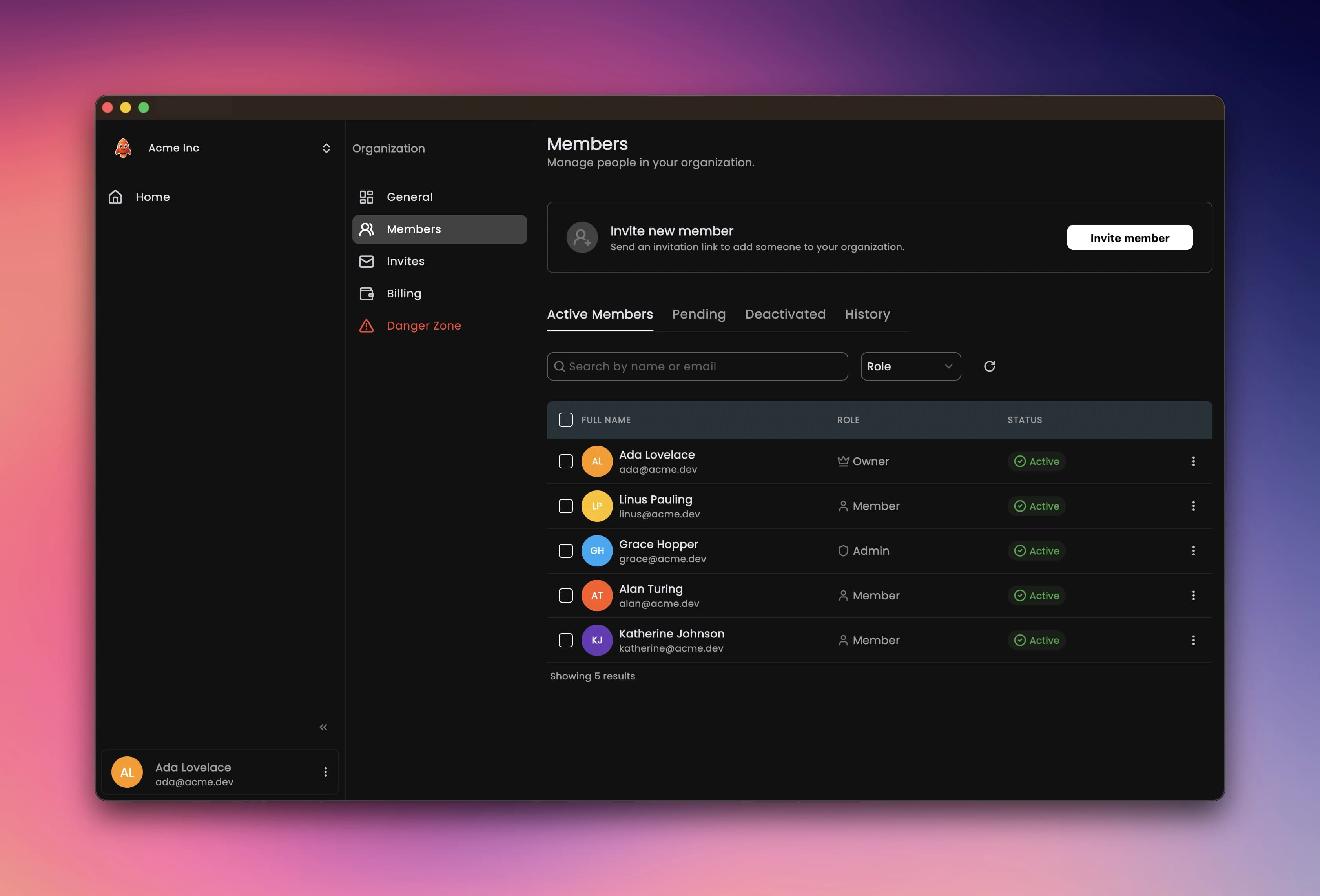
Each row carries an overflow menu, and owners and admins get checkboxes plus a bulk-action bar. The actions:
| Action | Who can do it | Never against |
|---|---|---|
| View profile | Everyone | |
| Change role | Owner, admin | Yourself, the owner |
| Deactivate | Owner, admin | Yourself, the owner |
| Reactivate | Owner, admin | Yourself, the owner |
| Remove | Owner, admin | Yourself, the owner |
| Resend / revoke invite | Owner, admin |
The two blanket rules are worth restating, because the database enforces them and every UI path honors them: you can never act on yourself, and you can never act on the owner. An owner who wants to step down does not get demoted here; ownership moves only through the transfer handshake below.
Deactivation is the reversible option. A deactivated member keeps their row, their roles and their history, but loses everything else: their permissions stop applying, and their current-organization pointer is cleared, so their next navigation lands them in the access hub rather than inside your data. Reactivate them and they are back as they were. Remove is the permanent version: the membership and its role assignments are deleted.
Bulk actions are all-or-nothing. A batch that includes yourself or the owner is rejected whole, with nothing changed, rather than partially applied; rows already in the target state are skipped silently, and the app tells you when a batch turned out to be a no-op.
Seat-based billing only
This section applies only to projects generated with `--seat-based-billing`.
Requires ENABLE_SEAT_BASED_BILLING
Seat-based billing is off in a new project. Set `ENABLE_SEAT_BASED_BILLING=true` in both `.env.local` and `supabase/.env.local` to use this section.
With seat-based billing on, deactivation is also the way to free a seat without losing the person: a deactivated member stops counting immediately, and reactivation re-runs the seat check. See Seat-Based Billing.
Transferring ownership
Every organization has exactly one owner, the database enforces it, and the only way to change who that is runs from the Danger Zone tab. It is a handshake, not an edit: the owner proposes, the recipient accepts, and nothing changes until they do.
The recipient must be an active administrator of the organization. A member cannot be made owner directly; promote them to administrator first, then transfer. That is deliberate: the person about to hold every permission should already be someone you trusted with most of them.
Both sides prove it is them
Initiating a transfer requires a fresh TOTP verification from the owner, and accepting one requires a fresh TOTP verification from the recipient. Declining does not; refusing power is allowed to be easy.
A pending transfer is a standing offer with limits:
- It expires after seven days if the recipient does nothing.
- There is one live transfer per organization at a time.
- A new transfer cannot be initiated within one hour of the last one.
- The owner can cancel it any time before it is answered.
Every number above is a knob. The seven-day offer window is the expires_at
column default, now() + interval '7 days', on org_ownership_transfers,
and the one-hour cooldown is a check against interval '1 hour' in the
initiate function; both live in supabase/migrations/*_multi-tenancy-init.sql.
What counts as a fresh TOTP code is the p_maximum_age default of
app.has_recent_totp_verification, INTERVAL '5 minutes', in
supabase/migrations/*_init.sql; widen it and you widen every step-up check
that relies on the default, not just transfers.
Both parties see the pending transfer on the Danger Zone tab, each from their own side, and lifecycle emails keep the administrators informed: initiation and acceptance notify all active admins, a decline or cancellation notifies the two people involved.
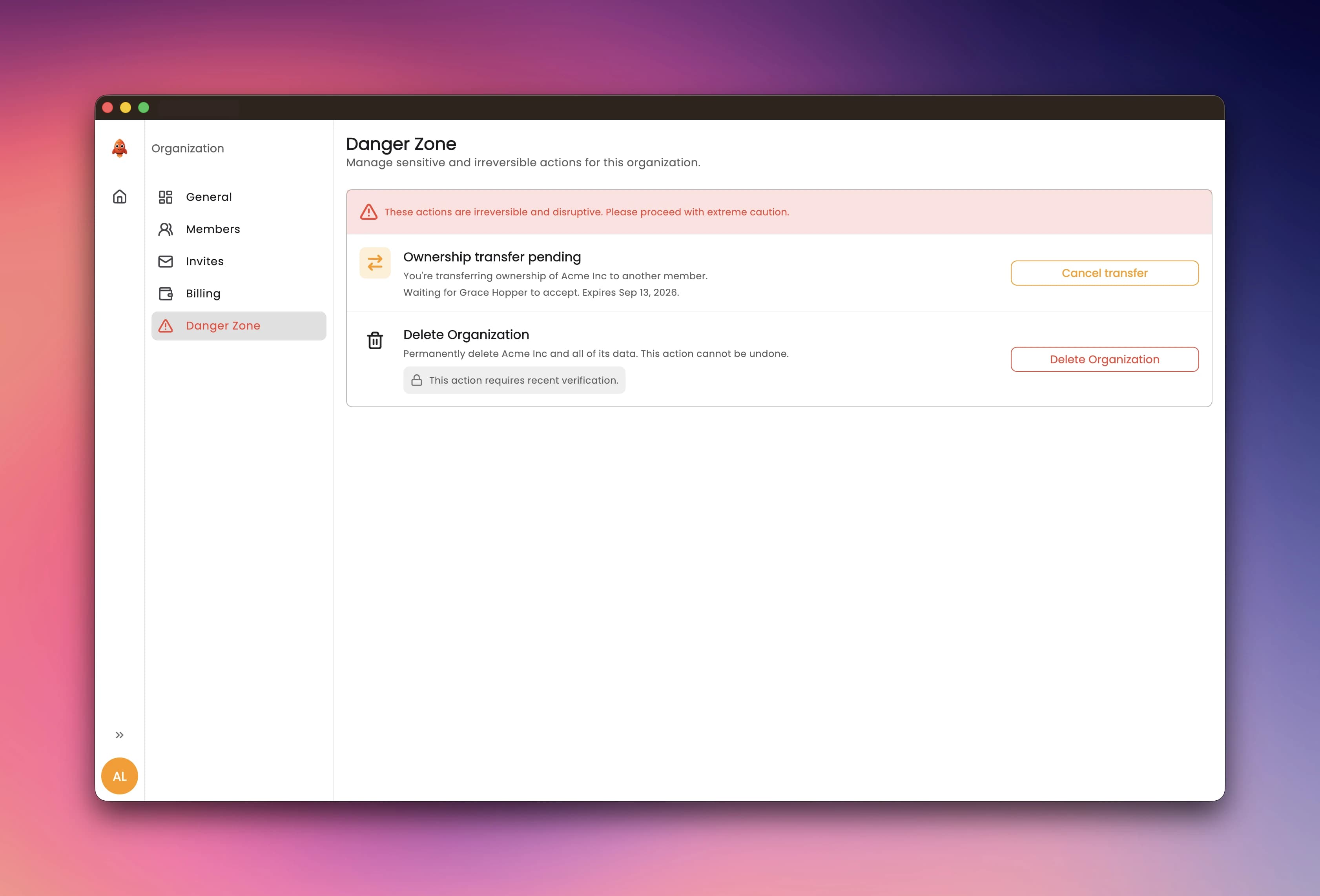
What changes on accept
The moment the recipient accepts, three things happen in one transaction:
- The recipient becomes the owner.
- The outgoing owner becomes a member, not an administrator. If they should keep elevated access, the new owner re-promotes them afterwards; the transfer itself deliberately strips it.
- The billing relationship is repointed at the new owner.
The subscription itself is untouched: same plan, same renewal date, no interruption for anyone in the organization.
The owner chooses one option at initiation: require a new payment method, on by default. With it on, the saved payment methods are detached when the transfer completes, and the new owner adds their own card; the old owner's card does not silently keep paying for an organization they no longer control. Turn it off only when the payment method genuinely belongs to the organization, a shared company card, rather than to the person leaving.
Why you cannot delete your account instead
Deleting your account while you own organizations is refused with a 409 and
the code OWNS_ORGANIZATIONS: "Transfer ownership or delete the
organizations you own before deleting your account." Since every account
starts with a personal organization it owns, everyone hits this at least
once; the deletion dialog counts the organizations and links straight to
where you resolve it, by transferring each one or deleting it.
The full deletion flow, including the other blockers, is on Account Deletion.
Configuration
Invitations are the one part of the organization layer that leaves your backend, so they depend on two pieces of configuration, both already listed in the env examples:
WEBSITE_URL=
SMTP_FROM="Floot <noreply@floot.dev>"
SMTP_HOST=
SMTP_PORT=
SMTP_USER=
SMTP_PASSWORD=
WEBSITE_URL is what every invitation link is built on. If it is wrong, the
emails go out and their buttons point nowhere; nothing else in the app will
look broken. The SMTP set is the transport the invitation email is sent over;
locally you do not need a real provider, invitations land in Mailpit like
every other email. See
Reading the mail.
The sending itself is triggered by a database webhook on the invitations
table, signed with DATABASE_WEBHOOK_SECRET. On a hosted project that secret
must also exist in the Vault, and nothing seeds it for you; the symptom and
the fix are covered in
Troubleshooting.