
Overview
What organizations are, why multi-tenant apps are built on them, and how creating, switching and roles work in the generated app.
Most apps begin with one user owning their own data. The moment two people need to work on the same data, a company account, an agency and its clients, a team and its projects, you need a container that owns the data instead of any single person. That container is an organization: a set of members, each holding a role, sharing one subscription.
This is the pattern behind almost every B2B SaaS product, and the starter kit ships it complete: creating and switching organizations, inviting members, assigning roles, and billing the organization rather than the person.
Multi-tenancy only
This section applies only to projects generated with `--multi-tenancy`.
Requires ENABLE_MULTI_TENANCY
Multi-tenancy is off in a new project. Set `ENABLE_MULTI_TENANCY=true` in both `.env.local` and `supabase/.env.local` to use this section.
One layer, one flag
Everything on this page exists only in projects generated with multi-tenancy, and none of it runs until the flag is on; see Turning it on.
What multi-tenancy means
Multi-tenancy is the architecture where a single deployment of your app serves many isolated tenants. Each organization is a tenant: its members see its data and nobody else's, even though every organization lives in the same database, separated by row-level security rather than by separate installations.
Do you need organizations?
The kit asks at generation time, and the honest answer depends on who your users are:
- Building for teams (B2B)? People will collaborate on shared data, someone will manage who is in and who pays, and companies expect to be billed as companies. Generate with multi-tenancy; this feature set becomes the product's backbone.
- Building for individuals (B2C)? Every user owns their own data, and a "switch workspace" menu would only confuse them. Generate without multi-tenancy: none of this code ships, personal subscriptions still work, and your app stays simpler.
The choice is made when the project is generated, and the runtime flag
ENABLE_MULTI_TENANCY turns the layer on in a project that has it. There is
no in-between mode where some users have organizations and others do not; if
you need that shape, it is a customization you build on top.
The concepts
Five words carry the whole system, and the rest of this page fills in their behavior:
| Concept | What it is |
|---|---|
| Organization | A shared account that owns data, members and one subscription |
| Member | A user's seat inside one organization; the same user can be a member of many |
| Role | What a member may do there: owner, admin or member out of the box |
| Invitation | An emailed offer of membership, with a role attached |
| Current organization | The one the app is operating as right now; it scopes every query the app makes |
They relate to each other in one small diagram: a user joins an organization through a membership, the membership carries the role, an invitation is a membership that has been offered but not yet accepted, and the organization, not the user, holds the subscription.
Every account starts with one
Signing up creates an organization named My Organization with the new user as its owner; the member's display name and avatar are seeded from the account profile, and the org gets a default logo until someone uploads one.
There is exactly one exception: a pending, unexpired invitation suppresses the auto-create. Someone invited to an existing organization signs up and lands directly in the accept flow instead of inside a personal org they never asked for.
Two consequences are worth internalizing early:
- Everyone owns something. Deleting an account is blocked with
OWNS_ORGANIZATIONSuntil every owned organization is transferred or deleted, and since signup handed each user an org, every user can hit that blocker. See Transferring ownership. - There is no "leave organization" action. A member exits an organization by being removed or deactivated by an owner or admin, never on their own. If you want self-service leaving, that is a feature you add, not a switch you flip.
Creating and editing an organization
The Create organization action lives in the switcher and in the access hub. It asks for three things: a name, a slug whose availability is checked live as you type, and an optional description. Whoever creates an organization is its owner.
Editing happens on the General tab of the organization screen: rename, change the slug or description, upload or remove the logo. All of it is owner-only; admins and members see the fields disabled. Hiding the controls is a courtesy, and the database refuses the write even when a client skips the courtesy; that two-layer pattern is the subject of Authorization.
Switching, and what "current" means
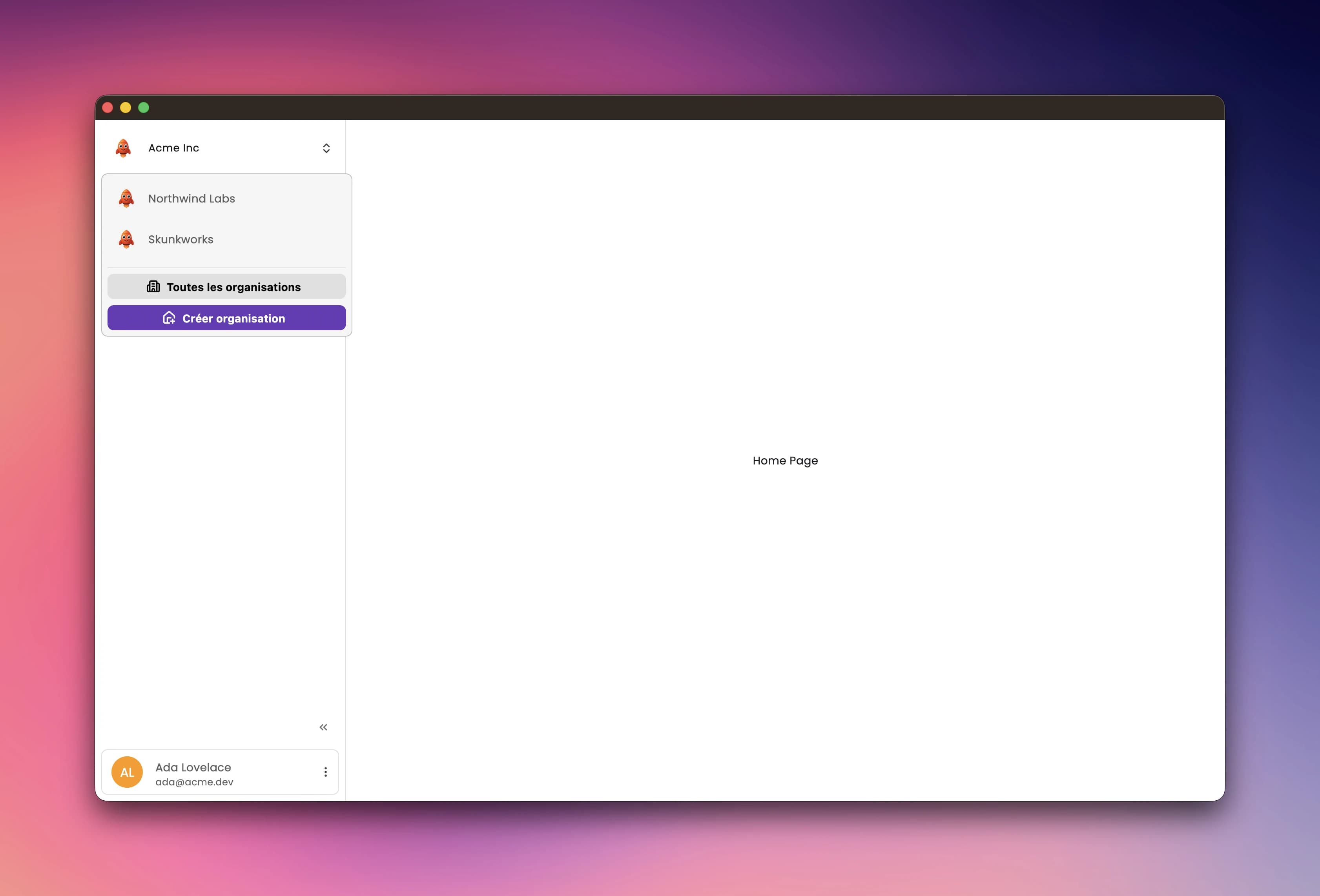
The organization header at the top of the sidebar (desktop) or app bar (mobile) opens the quick switcher. It lists up to three other organizations where your membership is active, one tap to switch; View all opens the access hub for the rest, and Create organization is right there too. Without multi-tenancy the header is just the app logo.
One current organization per account, not per device
The current organization is a server-side preference, one value per account. There is no per-device or per-session copy: switching on your laptop switches your phone too, and signing in anywhere puts you in the organization you left. The database keeps the pointer honest with three guarantees:
- It cannot point at an organization you are not a member of; such a write is rejected outright.
- Your first membership becomes your current organization automatically, so a fresh signup lands inside their new organization.
- Deactivating a membership clears it, which bounces that user to the access hub on their next navigation.
The app never has to defend against a stale pointer: an organization that deletes you, deactivates you, or disappears takes the preference with it.
The access hub
The access hub is the full-page fallback for a signed-in user who has no current organization. The router sends you there when:
- You have no current org. Post-auth, this is the default landing; while it stays true, every app route except account settings and the invite flow redirects to the hub.
- Your membership was deactivated. The pointer is cleared, and the next navigation lands in the hub.
- Your organization's subscription lapsed and you cannot fix it. A member without billing permission is redirected with a one-shot "contact your administrator" warning; owners and admins go to the billing screen instead.
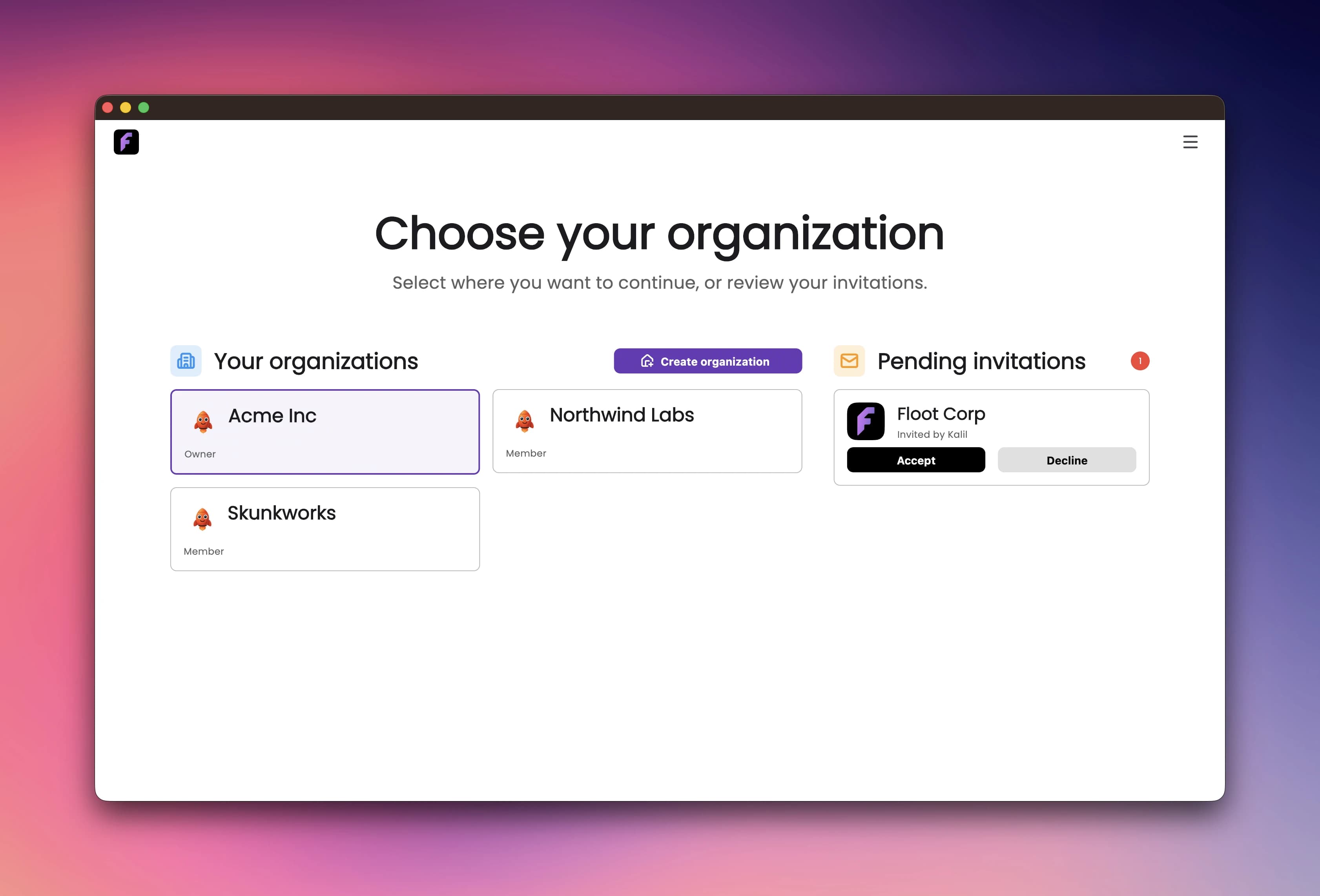
The hub offers everything needed to get unstuck: your organizations as cards (tap to switch), pending invitations with Accept and Refuse, a Create organization button, and, for a gated owner, a per-org menu with Delete organization and Transfer ownership. A user with nothing at all sees an empty state that still offers creation, points at their inbox for invites, and keeps a Delete my account link, so nobody is ever stranded on a screen with no exits.
Owner, admin, member
Three roles ship, and their names say most of it:
| Role | In one sentence |
|---|---|
| Owner | Full control, including org settings, the danger zone, and ownership itself |
| Admin | Everything the owner can do except edit the organization and act in the danger zone |
| Member | Read-only: sees the org, the members and the plan, manages nothing |
Ownership is stricter than a role: every organization has exactly one
active owner. The database fails any change that would leave zero or two
with OWNER_INVARIANT, so the owner cannot be invited, assigned, deactivated
or removed; ownership moves only through the two-sided handshake described in
Transferring ownership.
Under the hood, each role is a named bundle of permissions. The database checks them inside row-level security, and the app mirrors the same rules, so the UI hides what a member cannot do and the database rejects it anyway if the UI is wrong. The full permission list, the checks on both sides, and how to add or change roles are on Authorization.
The three are a starting set, not a ceiling. A fourth role, a guest, an auditor, a billing-only seat, is a supported customization: one seed edit, one Dart enum entry, and the compiler points at everything else. The step-by-step guide is Adding a role.
Turning it on
Requires ENABLE_MULTI_TENANCY
Multi-tenancy is off in a new project. Set `ENABLE_MULTI_TENANCY=true` in both `.env.local` and `supabase/.env.local` to use this section.
The flag lives in both environment files; the app and the Edge Functions each consult their own copy, and the two must agree.
ENABLE_MULTI_TENANCY=trueENABLE_MULTI_TENANCY=trueOn the app side it gates the switcher, the org header, the access-hub redirect and the org-scoped user query. On the backend it gates the org-related Edge Functions, which validate their environment at boot; a mismatch between the two files is the classic cause of every Edge Function failing to boot.
Invitations need two more things in supabase/.env.local: a correct
WEBSITE_URL, because every invite link is built on it, and a working SMTP
configuration to deliver the email. Both are covered in
Members & Invites.